

Here’s a list of all model architectures supported on vLLM.
Integrating Custom Models with Portkey SDK
1
Expose your vLLM Server
Expose your vLLM server by using a tunneling service like ngrok or any other way you prefer. You can skip this step if you’re self-hosting the Gateway.
2
Install the Portkey SDK
- NodeJS
- Python
3
Initialize Portkey with vLLM custom URL
- Pass your publicly-exposed vLLM server URL to Portkey with
customHost(by default, vLLM is onhttp://localhost:8000/v1) - Set target
providerasopenaisince the server follows OpenAI API schema.
- NodeJS SDK
- Python SDK
custom_host here.4
Invoke Chat Completions
Use the Portkey SDK to invoke chat completions from your model, just as you would with any other provider:
- NodeJS SDK
- Python SDK
Using Virtual Keys
Virtual Keys serve as Portkey’s unified authentication system for all LLM interactions, simplifying the use of multiple providers and Portkey features within your application. For self-hosted LLMs, you can configure custom authentication requirements including authorization keys, bearer tokens, or any other headers needed to access your model: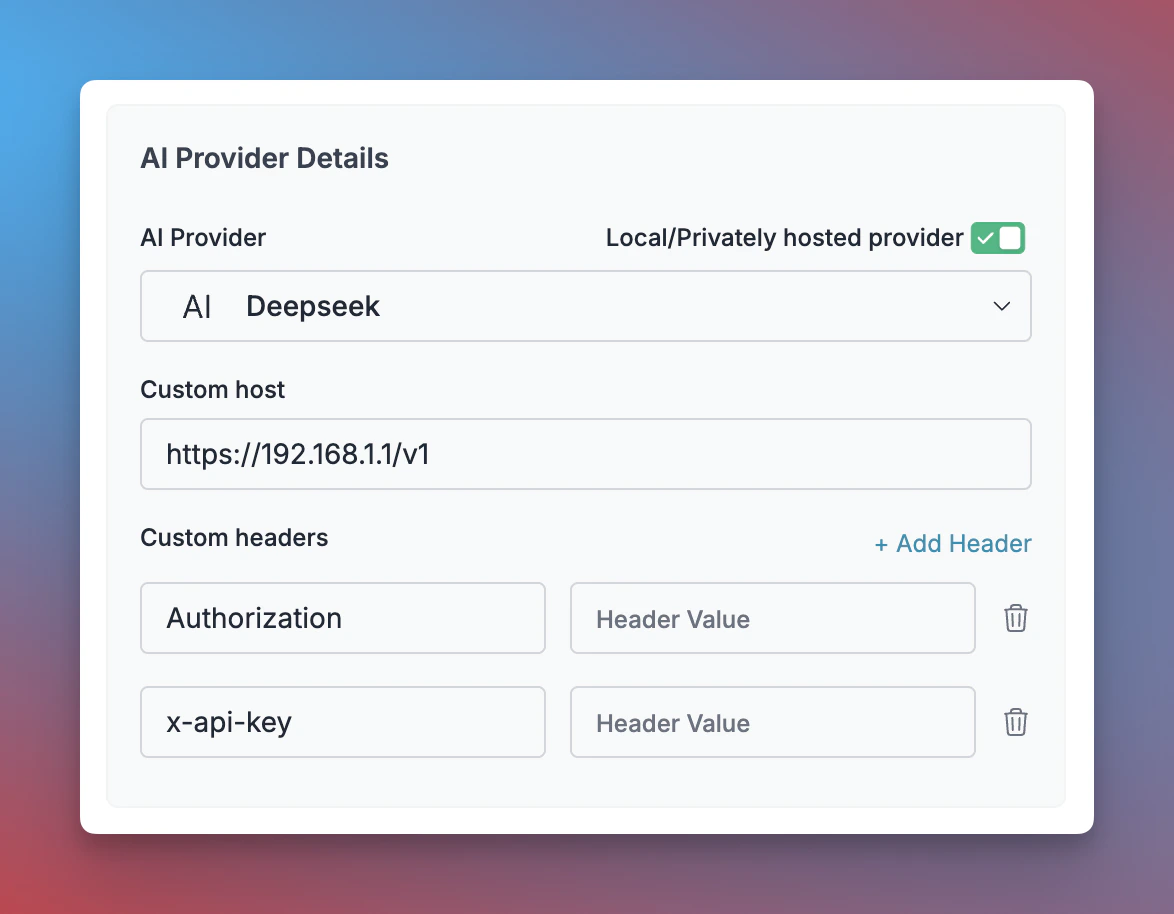
- Navigate to Virtual Keys in your Portkey dashboard
- Click “Add Key” and enable the “Local/Privately hosted provider” toggle
- Configure your deployment:
- Select the matching provider API specification (typically
OpenAI) - Enter your model’s base URL in the
Custom Hostfield - Add required authentication headers and their values
- Select the matching provider API specification (typically
- Click “Create” to generate your virtual key
- NodeJS
- Python
Next Steps
Explore the complete list of features supported in the SDK:SDK
You’ll find more information in the relevant sections: