

Logs export feature is only available on the enterprise plan. For more info reach us at support@portkey.ai
Exporting Logs In-App
You can now export logs directly from the Portkey application by following these steps:- Navigate to the Exports section on the main sidebar.
- Click the Request Data button in the top-right corner.
-
Configure your export parameters:
- Time Range: Select the period for which you want to export logs
- Logs Limits: Choose maximum number of logs or set a custom offset
- Requested Fields: Select which data columns to include in your export
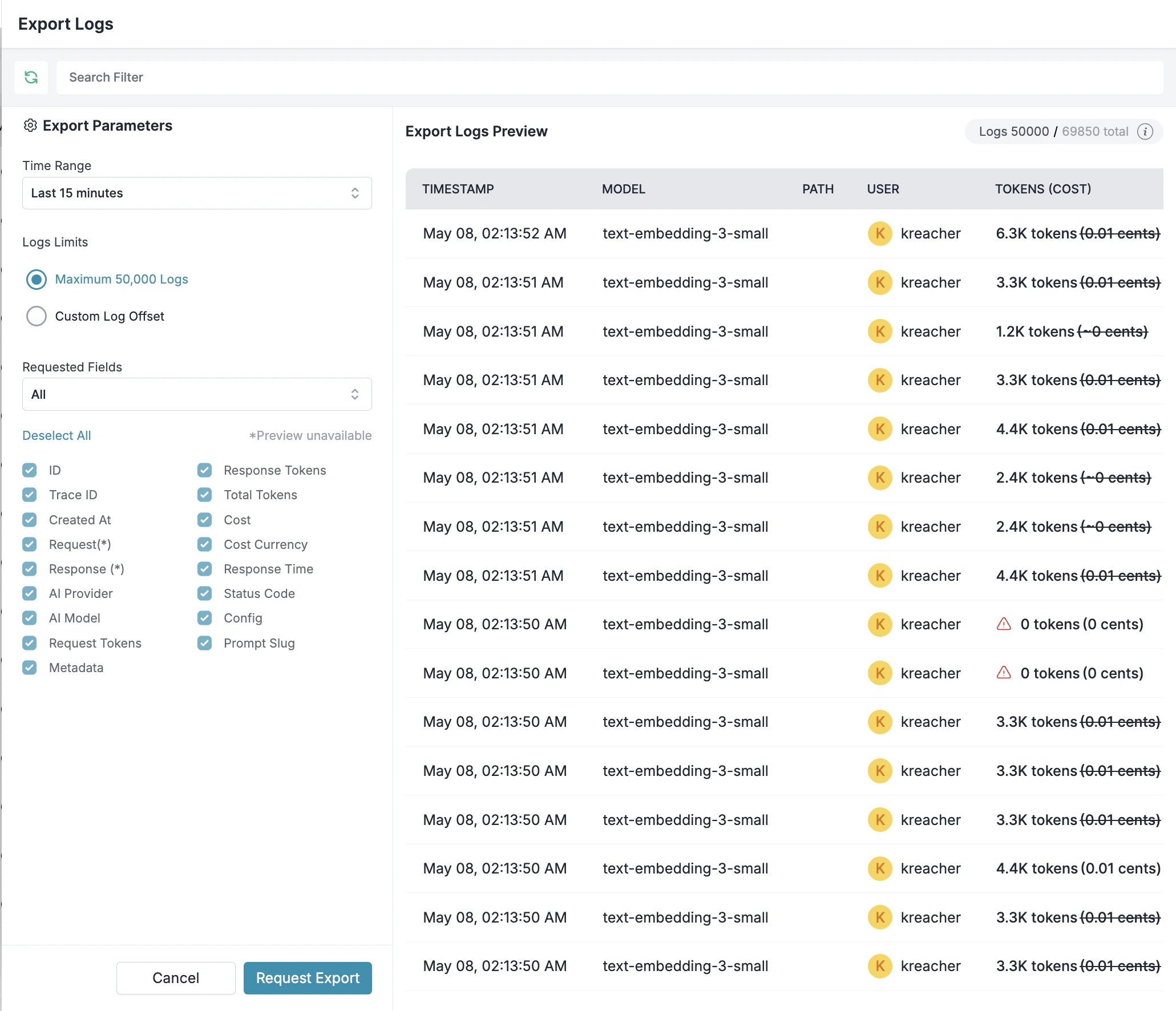
- After setting your parameters, click Request Export.
Available Export Fields
When configuring your log export, you can select from the following fields:-
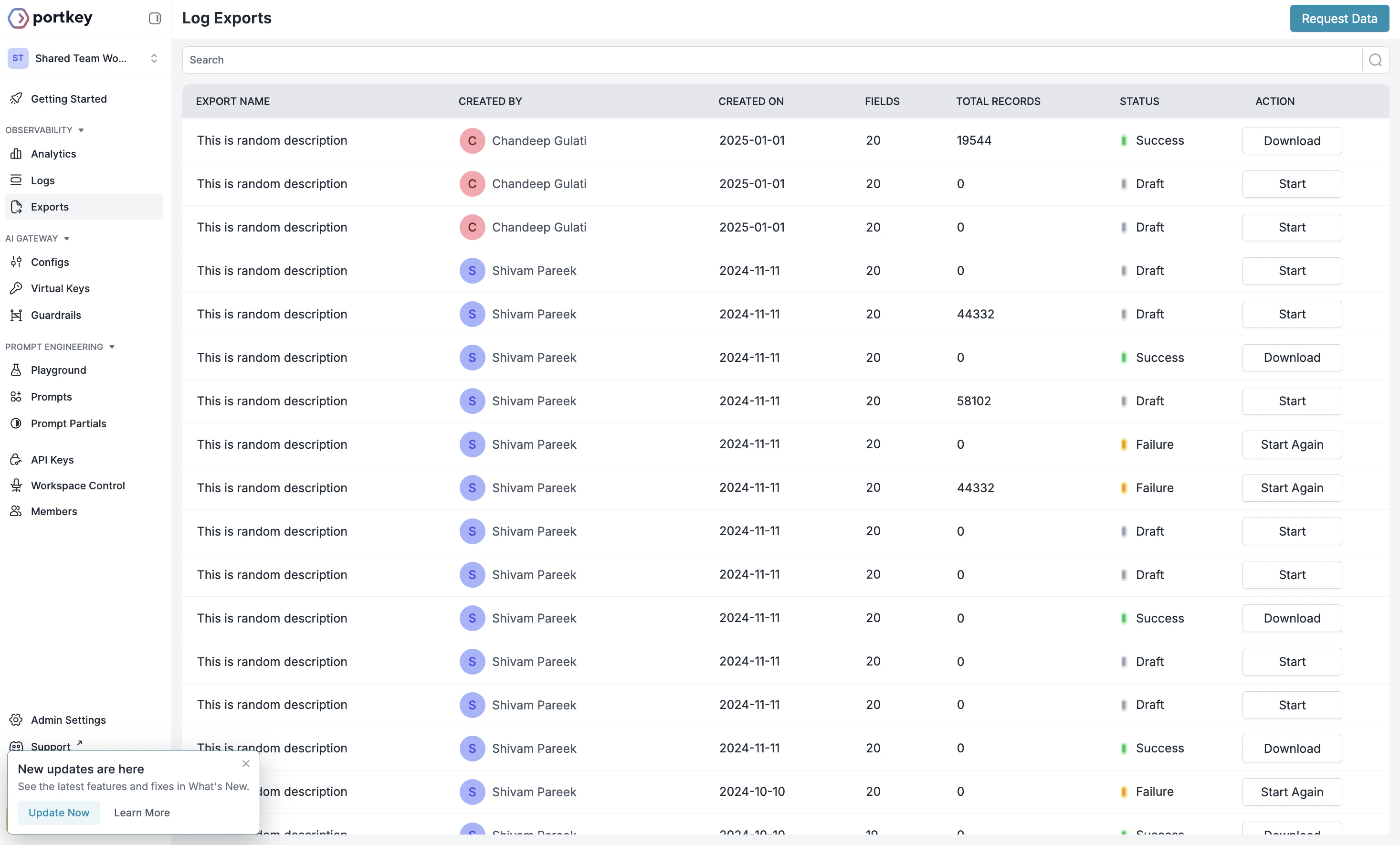
Once your export is processed, you’ll see it in the exports list with a status indicator:
- Draft: Export job created but not yet started
- Success: Export completed successfully
- Failure: Export job failed. Click on the
Start Againbutton to retry the job.
- Clik on the Start button the dashboard to start the logs-export job
-
For completed exports, click the Download button to get your logs data file. You can
Currently we only support exporting 50k logs per job. For more help reach out to the Portkey team at support@portkey.ai
Export File Details
Exported logs are provided in JSONL format (JSON Lines), where each line is a valid JSON object representing a single log entry. This format is ideal for data processing and analysis with tools like Python’s Pandas or other data analysis frameworks. Each export includes:- Up to 50,000 logs per export job (as shown in the preview panel)
- All fields selected during the export configuration
- A timestamp indicating when the export was created
Use Cases for Exported Logs
With your exported logs data, you can:- Generate custom reports for stakeholders
- Feed data into business intelligence tools
- Identify patterns in user behavior and model performance