

- Set up a Portkey client to handle Computer Use API calls
- Build a complete Playwright-based browser automation solution
- Implement the continuous action-screenshot loop required by Computer Use
- Enhance your application with Portkey’s enterprise features
Why Use Portkey with Computer Use?
Portkey adds several critical capabilities when working with OpenAI’s Computer Use:- Unified API Gateway: Seamlessly switch between models or providers while maintaining the same implementation
- Cost Tracking & Budget Controls: Monitor usage costs in real-time and set spending limits to prevent unexpected bills
- Detailed Analytics: View 40+ metrics for each interaction including token usage, response times, and error rates
- Enhanced Reliability: Implement retries, fallbacks, and timeouts to make your automation more resilient
- Secure API Key Management: Store API credentials securely using Portkey’s Model Catalog
- Usage Attribution: Track usage across teams, departments, or projects for proper cost allocation
Prerequisites
- Portkey account with API key (sign up here)
- OpenAI credentials added in Model Catalog (e.g., named
openai-prod) - Playwright for browser automation
This guide focuses on Playwright integration, but Portkey works equally well with other environments supported by Computer Use, such as Docker-based VMs or other automation frameworks.
Integration Steps
1. Install & Import Required Libraries
Python
The first time you run this, if you haven’t used Playwright before, you will be prompted to install dependencies. Execute the command suggested, which will depend on your OS.
2. Initialize Portkey Client
Replace the standard OpenAI client with Portkey’s client, configuring it with your Portkey API key and provider slug:Python
3. Set Up Your Browser Environment
Python
4. Create Helper Functions for Actions and Screenshots
Python
5. Implement the Computer Use Loop
Python
6. Start the Computer Use Session
Python
Complete Example
End-to-End Example
End-to-End Example
Here’s the complete code that combines all the pieces:
Python
Benefits of Using Portkey with Computer Use
Portkey enhances OpenAI’s Computer Use tool with several enterprise-grade features:1. Comprehensive Observability
Get detailed analytics on all your Computer Use interactions, including token usage, cost tracking, and performance metrics.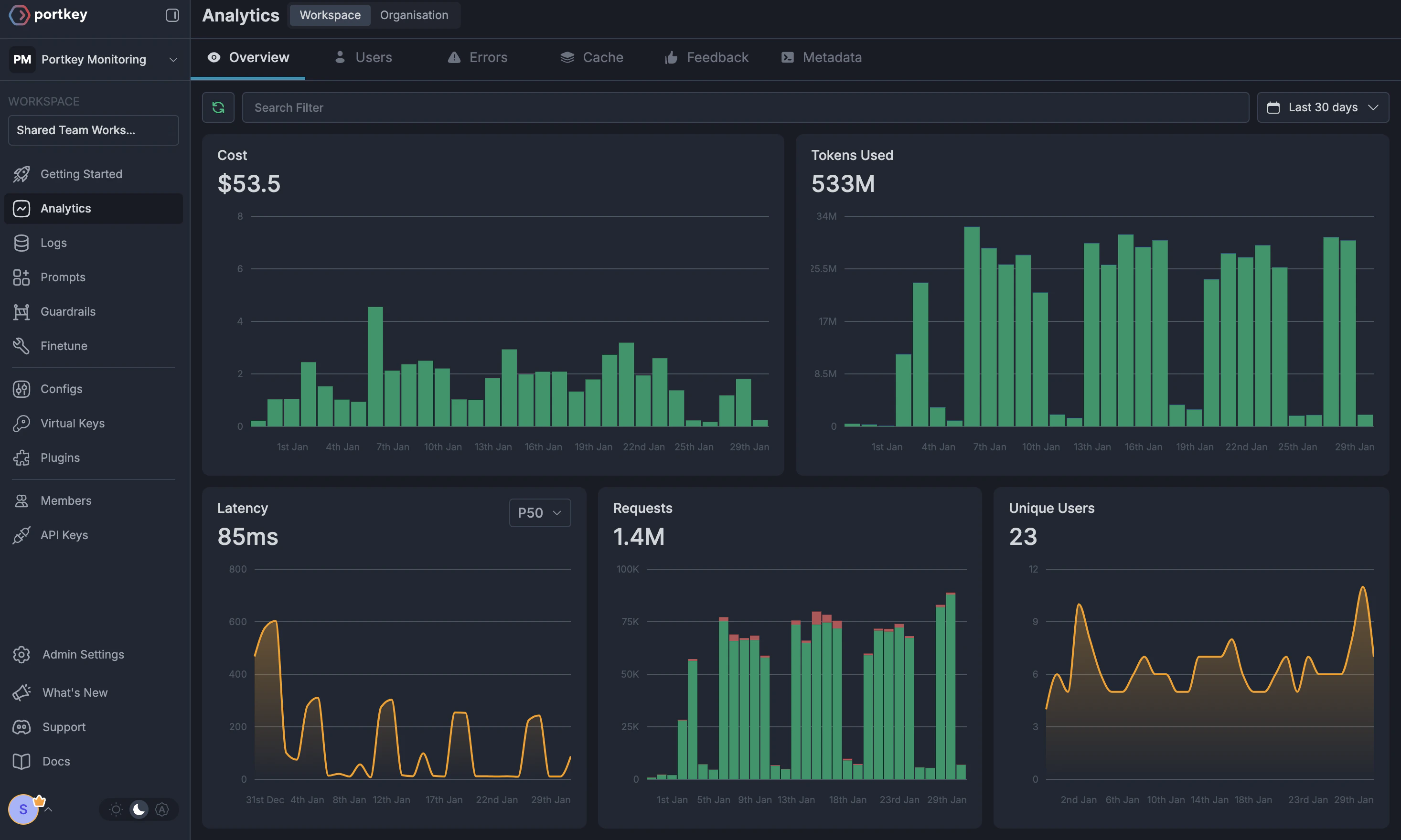
2. Budget Control & Governance
Set spending limits, track costs by department, and implement rate limiting to prevent unexpected usage spikes.3. Reliability Features
Add fallbacks, automatic retries, and timeouts to make your Computer Use applications more robust in production environments.4. Secure API Key Management
Store your OpenAI API keys securely using Portkey’s Model Catalog instead of exposing them directly in your code.Next Steps
For more details on setting up Portkey for enterprise AI deployments, see these resources:Budget Controls
Set and manage spending limits across teams and departments.
Reliability Features
Learn about fallbacks, load balancing, and retry mechanisms.
For enterprise support and custom features, contact our enterprise team.